DIY LED torch for light painting: Results

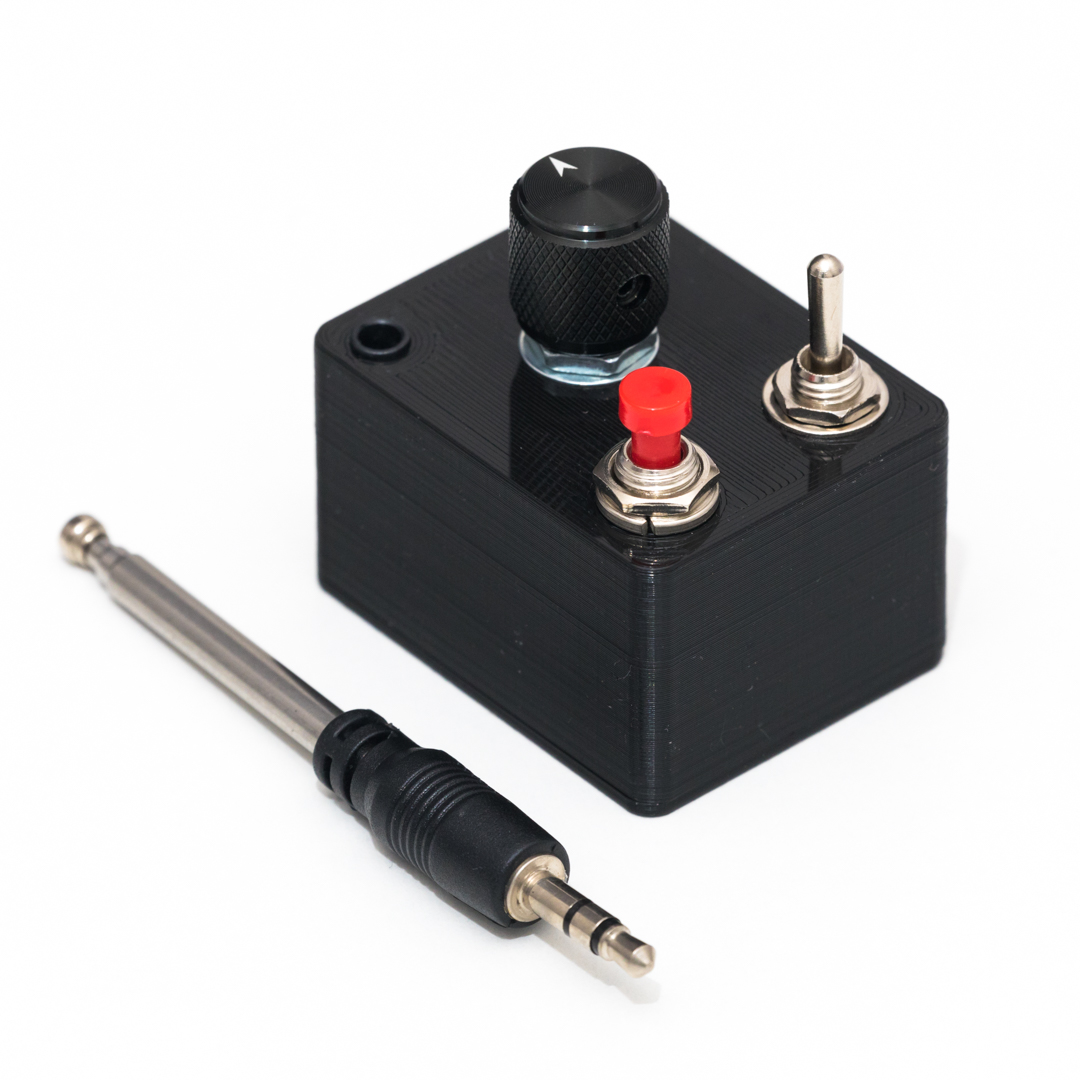
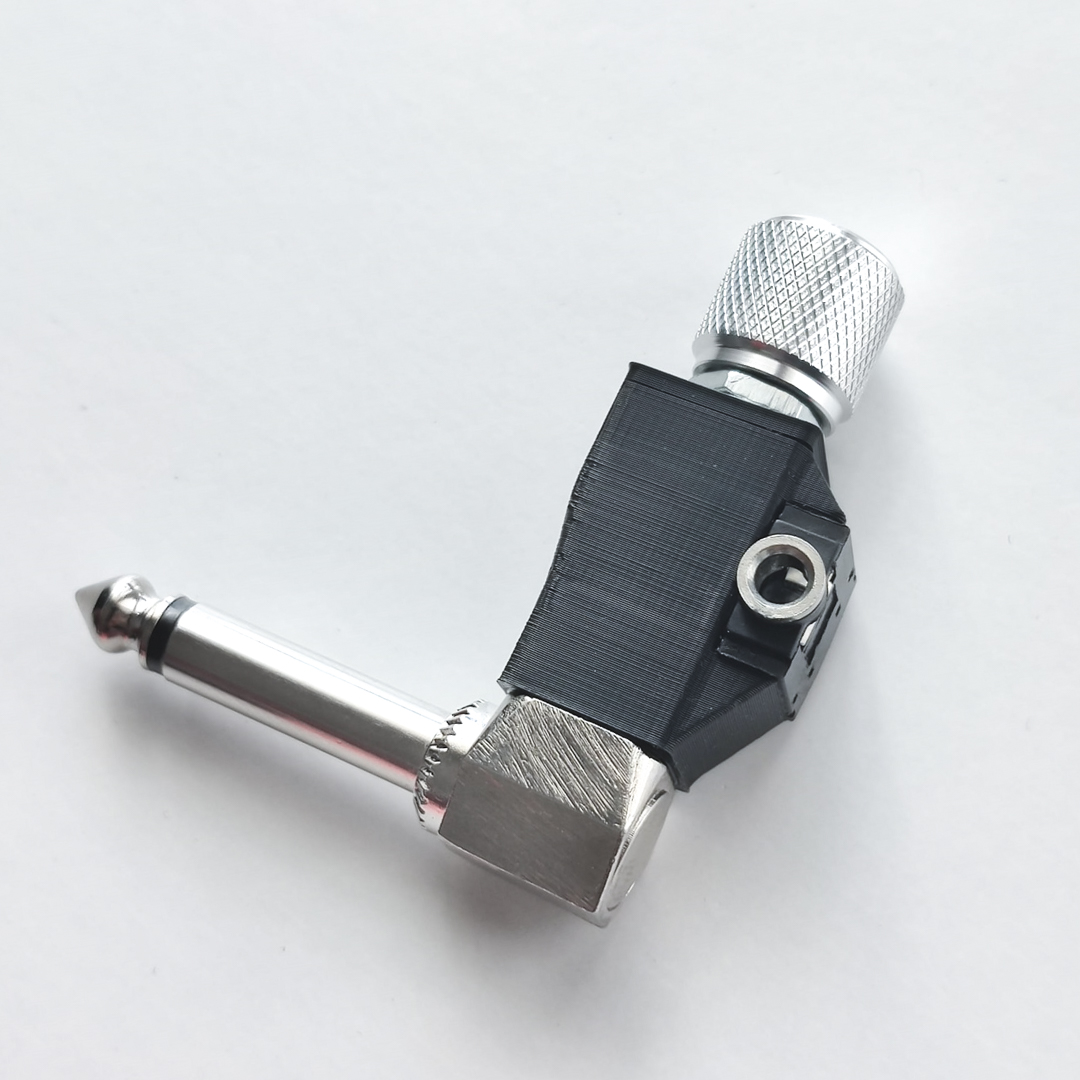
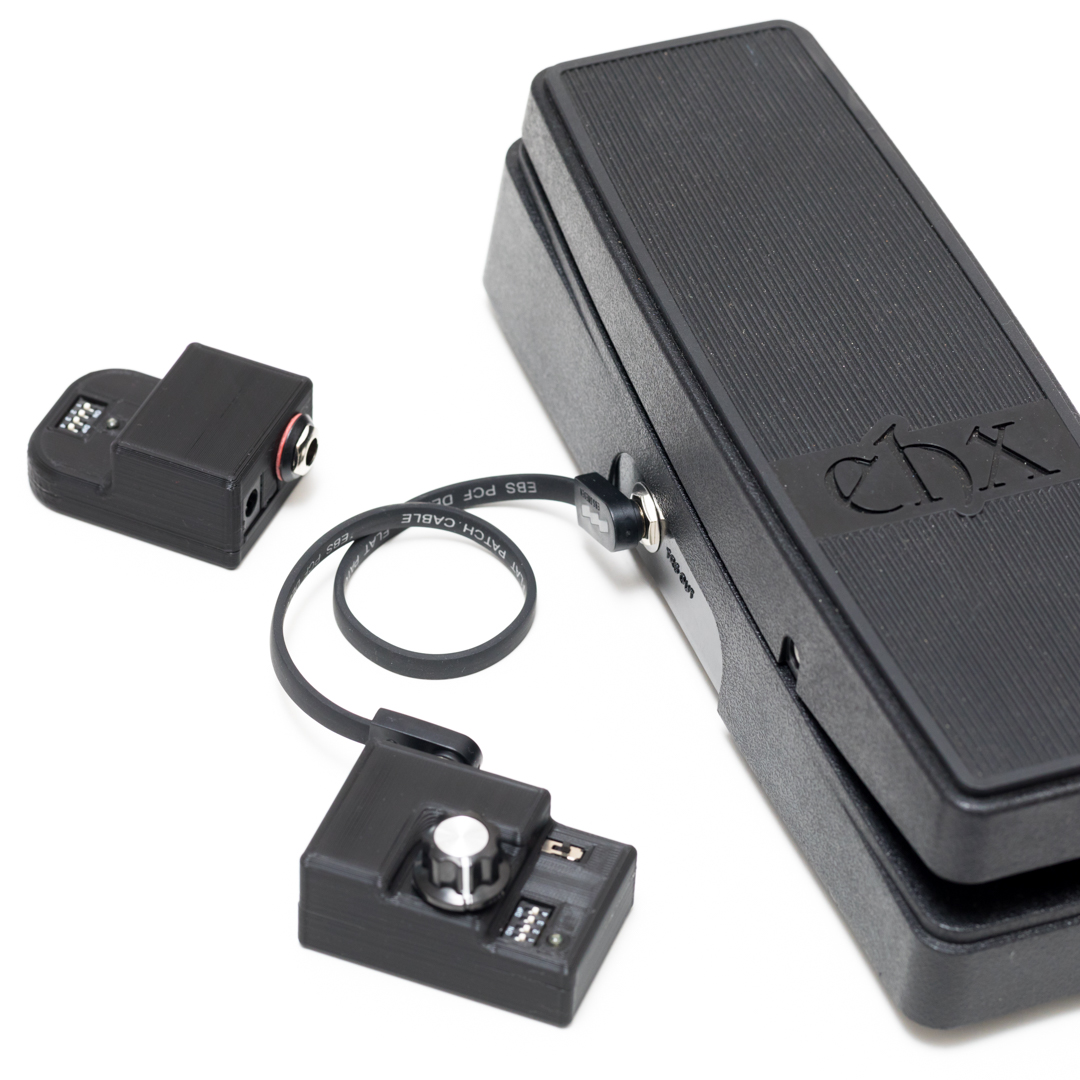
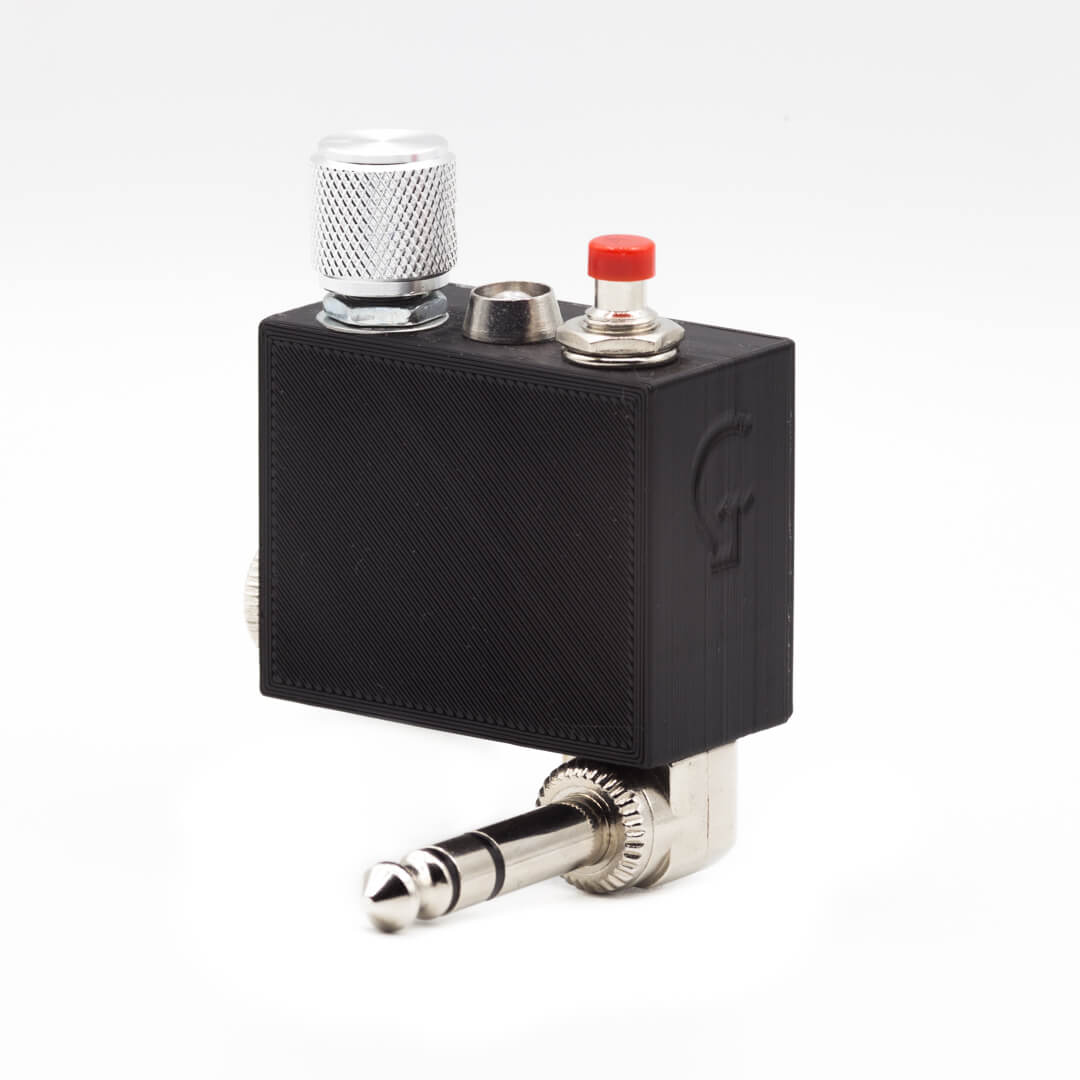
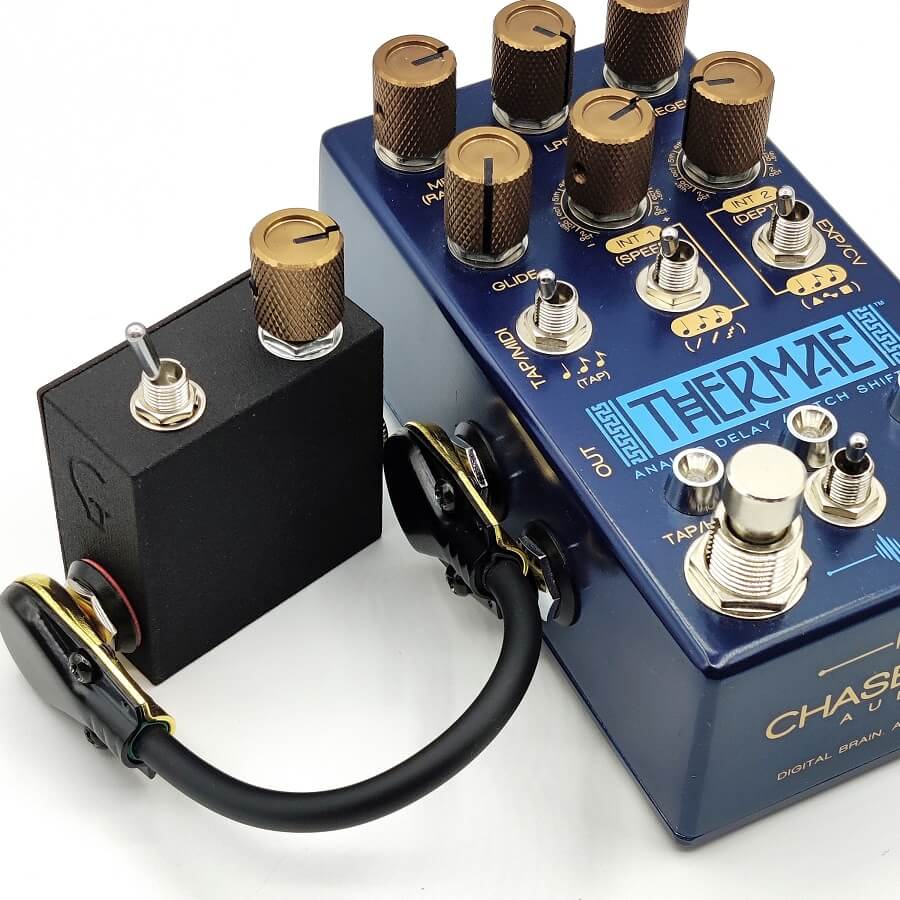
I tried my recent built tool a few days ago, and I’m quite pleased with the results. Even using the LEDs at less than half power they illuminate a lot and worked great to create light orbs and other shapes like letters. Some examples below.

Tags: , , , , , , , ,

No Comments


Gears 2

New tries with gears, this time with ambient occlusion and background texture. This is a part of a future photography work.

Tags: , , , , , , , , , , ,

No Comments


Gears

3D MAX 2011 + VRay, GI only. I used some planes on the top of the gears to get the different colors, thanks for viewing.

Tags: , , , , , , ,

No Comments


DIY LED torch for light painting

Light painting is an interesting photography technique in which we use long exposure in low light conditions and then draw using a flashlight or other objects that emit light, so that the resulting photo will contain all the movements and shapes we did with flashlight.

My purpose was to build a high power LED torch with the possibility to hang it from a chain or string so I could spin it or rotate it fast enough to draw an orb or other objects and still getting a bright result in the photo, because a typical LED torch or flashlight works well when trying to draw letters or lines in the light painting, because we move slowly, but when we move the flashlight much faster, the lines and spirals look much weaker, that’s why is useful to use high power LEDs, to see the light painting clearly. In addition, the batteries would add more weight at the end of the string, facilitating the spinning of the torch.


Component list:
- 1x 4 AA battery holder
- 3x high power SMD LEDs
- 1x PCB (1cm x 13cm approx.)
- 1x switch


The electrical circuit is very simple, basically there’s a 5ohms resistor and 3 SMD LEDs in parallel. The LEDs work at 3.8V with a power consumption of 350mA, but in this case I used a little higher resistor so the LEDs could still make more light, but I prefered a longer battery duration.

The circuit is divided in three small PCBs with one LED in each one, to illuminate in three different directions during the light painting.

To attach a string to the LED torch, I’ve added a M3 screw in the top part, but I still have to find an appropiate string or chain to use.

To make an orb with light painting you have to spin the LED torch with your wrist while you rotate slowly around yourself. This will create the effect of some sort of sphere, you can find a lot of examples of this technique.

I still haven’t tried it properly, I hope to post a new photo using this tool soon in my photography section, thanks for reading.


Tags: , , , , , , , , , , , , ,

No Comments


University final project

This is a demo video of my university final project, a MP3 Player using the PIC18F46J50 FS USB board and the VS1011e audio decoder.

Tags: , , , , , , , ,

1 Comment


Tutorial: Realistic HDRs with Photomatix

 
In the last years I’ve seen a lot of people abusing of this technique (me too at the beginning), creating irreal, oversaturated and noisy captures, usually made with Photmatix. I think that Photmatix is a very nice software but keeping always in mind its weaknesses, otherwise it’s easy to get fatal results, so that’s why I wanted to share some tips and personal recommendations about how to get slightly more realistic results with this program.
 
Not every scene will be better in HDR (High dynamic range), this technique is appropiate when the scene we’re capturing has some very dark or very bright parts (completely black or white parts). Sometimes our eyes can see these differences properly, but the camera’s sensor has less dynamic range than our eyes so some information will be lost. For example, a very bright sky but with dark shadows on the ground is a typical situation. But even in this kind of situations, it’s good to ask yourself which result do you prefer, getting all parts of the photo correctly exposed, or take advantage of this contrasted lights and get just the silhouettes of the mountains. In that case it wouldn’t be necessary to make an HDR.
 
For this tutorial I’ll suppose you know how to use the basic features of Photomatix, to get at least “ugly” results.
 
Before starting with the photomatix options, it’s important to say that to get a good result, it’s very important to start with a good set of photos. The typical bracketing option of the DSLRs usually offers +1, 0 and -1 steps between each of the three photos it does. I always to it manually, because I think sometimes it’s not enough with three photos, and sometimes I prefer doing the photos with less than 1 step between each one. I usually do 2/3 of a step between each one. I also start with the brightest frame, then I take several shots, lowering each time 2/3 of a step, and I do the necessary photos until I think it’s dark enough and it’s useless to make more photos. I recommend that if you can do more than three, do it, and once processing, you can choose if it will look better with three or more captures. The only two possible disadvantages of not using bracketing is that you may move slightly the camera while changing the exposure of each shot, and the other disadvantage is that you need to be quick if you’re capturing a landscape with clouds, because if it tooks you more than some seconds the clouds won’t be at the same place on the next photos. This last thing is something you need to avoid, because once in photomatix, when aligning the whole set of captures, it’s possible that the program uses the clouds to align instead of your main subject!
 

Also, photomatix allows you to make Pseudo-HDRs with only one RAW file, and then it does the bracketing, but this way the results tend to be much more noisy, so I recommend doing always separate captures, except when the scene has motion, in which case it wouldn’t be possible. My recommendations are the same for both methods, but my example will be with only one photo (on the right, 6″ exposure, ISO 400 and f/4.5). I tried to make a proper exposure because I just had the opportunity to do one photo (I was the last visitor that day).
 
 
Now these are the controls which I consider more important:

  • Strength: The name says it clearly, the more strength, more irreal and contrasted will be the result. I think that what it does is to let the darker captures manifest more than the bright ones. If you really want a real result, keep it low. This will also help to improve the noise of the photo. If lowering this parameter the photo becomes too bright, you can control this using the next parameters, do not increase again the strength just to get it nice exposed!


  • Color saturation: I personally like it a little saturated, this way I have the enough color information on the photo to increase or decrease it later in Lightroom. Even when I know that the photo will be in b/w I save it in color, maybe I realise later that it could be more interesting in color.


  • Luminosity: One of the most important controls, keep it as low as you can, it’s true that will be hard to get all the parts of the photo correctly exposed, but believe me, if you start with a good set of captures with slight exposure differences, this won’t be a problem. The error a lot of people does is to put a lot of luminosity, when I see these captures I think “oh, he used Photomatix”, because it’s very typical to get blurry and false results with this control, so keep it low!


  • Light Smoothing: One of the controls people thinks is cool at the beginning but also betrays that you used Photomatix. Depending on the position, different parts of the photo will be nice exposed, but as you get more parts good exposed, is when you get irreal results again. In very low or low, equals science fiction, so try to use always high or very high. Very high is the smoothest choice, which will expose especially the center part of the photo. Sometimes is better the High option, which affects to the whole photo and depending on the capture can give better results, its your choice to see which one fits better with your photo, but I don’t recommend using a lower value of this control.


  • Microcontrast: Another important control, in combination with Luminosity, affects dramatically to the overall result, and I recommend to move it as high as you can. If you used a very low Luminosity you can decrease a little this value to get a little more of light if you need it, but you’ll also lose contrast.


  • The White Point and Black Point is a personal choice, using a higher black point will give darker results, which you can compensate with the white point, but any radical choice will result in an irreal result or more noise, or both.


  • Temperature: I use the same for most of my captures. If you don’t touch the temperature control, after processing several photos you can observe that it give kind of orange/yellow tone to all the photos, so to compensate that, I use a lower temperature (usually -3 or -4) to get the correct color.


  • Micro-smoothing: This control can give more textures and details to your photo when it has a low value (typically 2), and you can even get more details with 1 or 0, but with this slight changes the noise of the photo can dramatically increase, so again, if you want real results, try to use a value greater than 2, there’s no problem if you move it very high.

 
There are some other controls but I think they’re less important, you can even leave them by default, but one thing I noticed is that’s complicated to get sharp results using only Photomatix. I usually export the file to tiff format and import it in Oloneo software (http://www.oloneo.com), just to increase the sharpness of the result, otherwise it may look dreamy or even blurry.


I hope this was helpful to somebody, below there’s the resulting image processed with Photomatix, then Oloneo for increase sharpness, and then imported to Lightroom to do some slight changes of contrast and temperature. In fact
this photo is not very realistic, but what I wanted was to explain how to get more real results.
 
Luxury colors

Tags: , , , , , , , , , , , , , , , , , , ,

14 Comments


Consuming art to create art

Since I started doing music, photography and other arts in which I’m interested, when I asked some people for advice at the start, the typical answer was “draw/listen/copy/play someting you like”. I think that trying to imitate a reference artist can be useful and motivating in the beginning to learn some technique, but what happens when all your education is based on learning that way?
Old music sheets
Learning classical piano for example, the common denominator of most schools is that they teach you how to read sheet music gradually, to be able to play more and more dificult songs, songs which most of them were composed two hundred years ago, isn’t there any good classical piano composers at present? Things are quite different in modern music styles like Jazz or Blues, where an significant part of the song isn’t in the paper but in the artist, this forces the interpreter to contribute with a personal expression to the song. Due to this “extra” effort we do have some brilliant Jazz musicians at present, Brad Mehldau for example. I don’t pretend to say that modern styles are for most talented musicians, I just think that some existing (and extended) teaching methods don’t maximize the creative abilities of the artist.

This has happened to me for example, when I try to create a new song, half of the time I have an idea I’ve thought “Cool! Wait a minute…”, and then I realise that that melody was from a soundtrack I listened a year ago. Is it really valuable having listened and learned to all that songs or technique when talking about creating something new? I think it happens the same with photography. In my opinion is like wanting to build a castle with those wooden pieces games, if you have the pieces in front of you, you will build only with that pieces, but if you start with no pieces but you still want to build the castle, you’ll find something to replace them, don’t be afraid of not having the proper education or knowledge about an art, because in my opinion all of that is less important than curiosity and attitude.

What is also interesting is that if you can play a Rachmaninoff concerto you’re a genius, but if you draw a copy of a Monet’s painting, this is not so amazing at the eyes of another artist, to be euphemistic, so innovation is more or less important depending on the art we’re talking about, and I’m not sure if this makes any sense.

Tags: , , , , , , , , , , , ,

No Comments


Leave it open

Some of you may use idea/sketch notebooks regularly to write down everything that comes to your mind and has value for you, ideas or sketches of something related with your passions.

Moleskine sketchbook

Ideas can emerge at any moment of the day, walking in the street, reading an article, talking to a friend… and it’s important to write them down at the moment you have them, because it may seem easy to remember an idea, but it’s not so easy to get it back, that’s what the notebooks are for. Some prefer to bring pocket-size notebooks everywhere, but I prefer an A5 size notebook, so I can’t carry my notebook always with me. What I do is write a note with some keywords in my smartphone just to remember what I have to write later.

Because of my noteboks’ size, I usually write in my room’s desk, but my notebook is often somewhere else, in my bag or a shelf. It may sound ridiculous but I’ve noticed (or at least happens to me), that I write quite more often if I leave my notebook open at my desk. Sometimes you don’t get any ideas until you pick a pencil (or a brush) and place in front of a blank canvas.

Also, I think it’s important to write only what you think it’s an idea (no matter if good or bad), if you want to write the shopping list or “TO DO” list, do it in another place, this will give more value to your notebook, even a little more motivation to get new ideas. You can feel the same motivation buying a Moleskine, but it’s the content what will make your notebook valuable. So if you need more ideas, no matter if you’re a musician, photographer, programmer, don’t just place the notebook on your desk, leave it open.

Tags: , , , , , , , , , , ,

21 Comments


RAW Quality Infrared Photography

One of the typical issues I had when doing infrared photography is that when shooting in RAW format, when we import a photo in Adobe Photoshop or Lightroom, everything turns reddish again, as if we hadn’t used a proper white balance.

That happens because at least both Adobe Photoshop and Lightroom aren’t capable of using temperatures lower to 2000º K, and when we import a RAW file that had a lower temperature than that (which is usual in infrared photography lol), Photoshop sets the temperature to 2000º K because it can’t go lower.

We need a quite lower temperature so even if we swap red and blue channels to get the proper colors, the result will be still much worse than what we could have obtained when processing with the correct temperature.


(See image 1 for bad temperature example)


The solution? Use another software, at least to import the RAW file.

When I saw this problem I tried other applications and I personally like Oloneo PhotoEngine (www.oloneo.com), which is more a HDR Software than a RAW processing tool, but works great to solve the problem with infrared photography (They offer a 30-day trial).

In Oloneo, we just need to import the RAW file and adjust whatever we want, EXCEPT temperature.

As soon as we touch the temperature slider, Oloneo will try to change the temperature to the original and in this case the result will be horrible again, because Oloneo’s lowest temperature is 2500º K, still not enough! Then, do not touch the slider and change whatever you want (I find very useful the detail strength slider, it really enhances a lot of details).

Once done, we export as TIF format.


(See image 2 for good temperature example, exported with Oloneo, imported in Photoshop and then swapping red and blue channels)


Now we can import the TIF file in Photoshop or wherever we want without temperature problems and with RAW image quality!


Here’s a different perspective of the same place, using some split toning done with Lightroom:

Natural leading

Tags: , , , , , , , , , , , , , , , , , , , ,

No Comments


DIY Amazon Kindle 3 case

I purchased the new Amazon Kindle 3 some weeks ago, and I’m really satisfied with it, but I found the original cover too expensive, so I decided to do my own using a DVD case of a very bad movie instead.

The procedure:

  1. Take the worst DVD movie you find at home.
  2. Open the case completely so you separate and take out the paper with the synopsis and photo of the movie. You can flip this same paper as I did and put it inside again to get a white cover.
  3. Use a cutter to cut any plastic part of the inside of the cover that may annoy.
  4. A standard DVD case it’s slightly shorter than the Kindle so we’ll also cut the half top part of the case in order to close the cover without problems with the Kindle inside (see photos).
  5. Cover done!

Tags: , , , , , , , , , , ,

3 Comments


SetPageWidth